Unleashing Creativity: The 15 Repair Tools Illustrations Kit
Every designer, blogger, and small business owner eventually hits a wall where standard stock photos feel stale and overly corporate. You need imagery that feels authentic, tactile, and versatile without looking like a generic template. This is exactly where the 15 Repair Tools Illustrations collection steps in, offering a breath of fresh air with its distinct black and white doodle style. It is not just a set of images; it is a cohesive visual language designed to communicate hard work, precision, and creativity.
The Anatomy of the Doodle Style
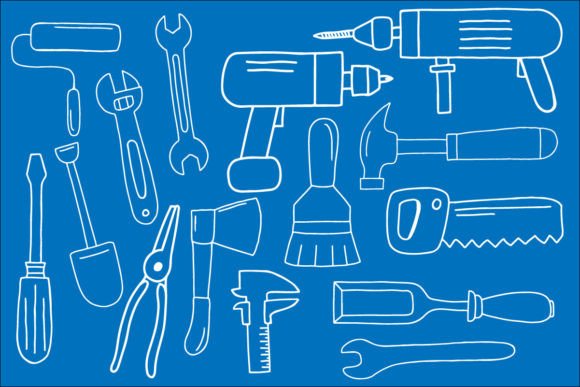
What makes this set of design assets stand out is the "hand-drawn" aesthetic. In a digital world dominated by perfect vectors and glossy gradients, the 15 Repair Tools Illustrations bring a human element back to the table. The black and white line art is crisp yet organic, featuring tools like the hammer, saw, wrench, and screwdriver rendered with charming imperfections. This style works beautifully because it mimics the look of a sketchbook entry, making it instantly relatable to audiences who value craftsmanship.
Because these are high-fidelity vector illustrations provided in SVG, EPS, and transparent PNG formats, you get the best of both worlds. You have the raw, artistic feel of a doodle with the technical scalability of modern vector graphics. Whether you are scaling the design up for a massive construction banner or shrinking it down for a favicon, the line work remains sharp. The personality of these illustrations is approachable and slightly retro, fitting perfectly into projects that require a touch of nostalgia or a grounded, "roll up your sleeves" attitude.
Strategic Applications for Modern Brands
Understanding where to deploy these assets is key to maximizing their value. The versatility of the 15 Repair Tools Illustrations allows them to cross boundaries between personal hobbies and professional commercial branding. They are particularly effective in industries where reliability and utility are the primary selling points.
Consider the following practical applications for these graphics:
- Web Design and UI: Use the knife or scissors illustrations as custom icons for "cutting edge" features or editing tools within a web application. The doodle style softens the user interface, making the experience feel more interactive and less sterile.
- Editorial and Publishing: If you are a blogger writing about DIY projects, home renovation, or crafting, these illustrations serve as perfect spot graphics to break up long blocks of text. They add visual hierarchy without distracting from the written content.
- Packaging and Labeling: For a hardware store, a local carpenter, or even a craft brewery that wants to emphasize "craftsmanship," using these black and white drawings on labels or boxes adds a layer of artisanal credibility.
- Social Media Graphics: In a crowded feed, a bold black and white wrench or saw cuts through the noise of colorful, generic posts. They are excellent for creating consistent visual themes on Instagram or Pinterest.
Enhancing Brand Perception and Visual Hierarchy
Typography and imagery work hand in hand to tell a story. While you might use a bold sans serif font for your headers, incorporating the 15 Repair Tools Illustrations can dictate the mood of your entire layout. These images influence how your brand is perceived. A hand-drawn screwdriver suggests a company that is hands-on and detail-oriented. A brush illustration implies a focus on finishing touches and aesthetics.
When you integrate these assets into your logo design or brand identity system, you are signaling that your brand values manual skill and tangible results. This is a powerful psychological trigger for consumers who are tired of faceless automation. Furthermore, the high contrast of the black and white files ensures that they work seamlessly with any color palette you choose, maintaining professionalism while adding a creative spark.
Practical Tips for Integration
To get the most out of this kit, you need to treat these illustrations as a system rather than isolated clip art. Here is some guidance on integrating them effectively into your workflow:
- Test Your Pairings: Don't just drop a hammer next to your headline. Experiment with transparency and layering. Place a faint saw illustration behind your text to create a watermark effect, or use the scissors to "cut" the border of a photo frame.
- Check the Format: If you are working in Adobe Illustrator or Affinity Designer, stick to the EPS or SVG files to retain full editability. If you are a content creator using Canva or a similar platform, the transparent PNGs are your best friend as they require no background removal.
- Consistency is Key: If you use the wrench in your "About Us" section, try to use the hammer or the brush in your "Services" section. This creates a cohesive visual language that helps the user navigate your site or publication intuitively.
- Commercial Usage: Always review the licensing details. For small business owners, ensuring that your design assets are cleared for commercial use is vital to protect your brand identity down the line.
Ultimately, the 15 Repair Tools Illustrations